
Learn how to install VirtualBox on Rocky Linux 9 with our comprehensive step-by-step guide. Enable seamless virtualization and run multiple operating systems on your Linux environment with ease. #centlinux #linux #virtualbox
Table of Contents
What is VirtualBox?
VirtualBox is an open-source virtualization software developed by Oracle that allows you to run multiple operating systems (OS) simultaneously on a single physical machine. It creates virtual machines (VMs) that emulate a complete hardware environment, enabling you to install and run different Operating systems in isolation from each other and from the host operating system. Here are some key features and uses of VirtualBox:
- Cross-Platform Compatibility: VirtualBox runs on various host operating systems, including Windows, macOS, Linux, and Solaris. This makes it a versatile tool for users across different platforms.
- Guest Operating Systems: You can install a wide range of guest operating systems on VirtualBox, such as different versions of Windows, various Linux distributions, macOS, Solaris, and even older or less common Operating systems.
- Snapshotting: VirtualBox allows you to take snapshots of your virtual machines at any point in time. Snapshots capture the entire state of the VM, allowing you to revert back to that state if needed, which is useful for testing and development.
- Seamless Mode: This feature allows you to integrate applications from the guest OS with the host OS desktop, providing a more seamless user experience between the two environments.
- Shared Folders and Clipboard: VirtualBox supports shared folders, enabling easy file sharing between the host and guest OS. It also supports shared clipboard functionality, allowing you to copy and paste between host and guest systems.
- Networking: VirtualBox offers various networking modes, such as NAT, Bridged, Internal, and Host-only networking, allowing VMs to communicate with each other, the host, and external networks as needed.
- USB Support: VirtualBox provides support for USB devices, allowing you to connect USB peripherals to your virtual machines as if they were connected directly to the guest OS.
- Virtual Disk Images: VirtualBox uses virtual disk images (VDIs) to store the guest OS and its data. These images are files on the host system that simulate hard drives for the virtual machines.
- Extensibility: VirtualBox supports a variety of extension packs that can add additional functionality, such as support for remote desktop protocol (RDP), USB 2.0/3.0 devices, and PXE boot for Intel cards.
- Cost and Licensing: VirtualBox is free to use under the GNU General Public License (GPL) for personal and educational purposes. An enterprise version with additional features, called Oracle VM VirtualBox Extension Pack, is available under a different license.
VirtualBox is widely used for software development, testing, and education because it provides an easy way to run multiple Operating systems on a single machine without the need for additional hardware. It’s a valuable tool for developers who need to test their applications on different platforms, IT professionals managing multiple environments, and anyone interested in learning about or using different operating systems.
What is VirtualBox Guest Additions?
VirtualBox Guest Additions are a suite of software drivers and utilities that can be installed inside a virtual machine (VM) running on VirtualBox to improve the integration and performance of the guest operating system. Here are the key features and benefits of installing Guest Additions:
- Improved Performance: Guest Additions include optimized drivers for the guest operating system, which enhance the performance of graphics, disk I/O, and network operations. This leads to smoother and faster operation of the guest OS.
- Seamless Mouse Integration: With Guest Additions installed, the mouse pointer can move seamlessly between the host and guest OS without the need to press a special key to release the mouse from the guest. This makes the interaction between the host and guest much more fluid.
- Shared Clipboard: Guest Additions enable a shared clipboard between the host and guest OS, allowing you to copy and paste text, files, and other data between the two environments seamlessly.
- Shared Folders: This feature allows you to create folders on the host that are accessible from the guest OS, making it easy to transfer files between the host and guest without needing network shares or external storage.
- Automated Window Resizing: With Guest Additions, you can resize the VM window, and the guest OS will automatically adjust its screen resolution to match the new window size. This makes it easier to manage VM display settings and improves usability.
- Better Graphics Support: Guest Additions provide enhanced video drivers that support higher resolutions, better color depth, and smoother graphics performance. This is particularly useful for graphical applications and desktop environments.
- Seamless Mode: This feature allows you to run applications from the guest OS as if they were running on the host OS desktop. Applications from the guest appear on the host desktop without the full guest desktop environment, providing a more integrated user experience.
- Time Synchronization: Guest Additions synchronize the guest OS clock with the host OS clock, ensuring that the time settings remain consistent between the two systems.
- Automated Logins: For supported guest OSes, Guest Additions can automate the login process, allowing you to log into the guest OS without needing to enter credentials each time.
- Shared Memory and Drag-and-Drop: Some features like shared memory and drag-and-drop functionality between the host and guest OS are also provided by Guest Additions, enhancing the overall usability and interaction between systems.
VMware vs VirtualBox
VMware
Pros
- Performance: Better CPU and memory utilization.
- Features: Advanced options like cloning and snapshots.
- 3D Graphics: Superior support.
- Support: Robust commercial support.
Cons
- Cost: Paid product (Pro); Player is free but limited.
- Complexity: More complex to use and configure.
VirtualBox
Pros
- Cost: Free and open-source.
- Ease of Use: User-friendly setup.
- Cross-Platform: Supports Windows, macOS, Linux, and Solaris.
- Extensibility: Rich plugin ecosystem.
Cons
- Performance: Generally lower than VMware.
- 3D Graphics: Basic support.
- Support: Lacks dedicated commercial support.
Read Also: How to install VirtualBox on CentOS 7
Conclusion
- VMware: Professional and enterprise environments needing advanced features and performance.
- VirtualBox: Personal use, education, and small projects due to its cost-effectiveness and simplicity.
Environment Specification
We are using a minimal Rocky Linux 9 virtual machine with following specifications.
- CPU – 3.4 Ghz (2 cores)
- Memory – 2 GB
- Storage – 20 GB
- Operating System – Rocky Linux release 9.0 (Blue Onyx)
- Hostname – virtualbox-01.centlinux.com
- IP Address – 192.168.116.131/24
For those planning to create a robust Linux Home Lab environment to experiment with VirtualBox and multiple virtual machines, using a Mini PC or a VPS can be an ideal choice. A Mini PC offers a compact, energy-efficient hardware solution that you can keep running at home, providing great performance for running Rocky Linux and VirtualBox without relying on your main workstation.
[Limited Time Mini PC Offers – Click and Save!]
Alternatively, a Bluehost VPS provides a cloud-based Linux server environment with scalable resources and remote accessibility, perfect for testing server setups and virtualization in the cloud.
[Launch Your VPS Server with Bluehost – Reliable & Affordable!]
Both options are excellent for hands-on learning and practical DevOps experimentation. If you’re interested, you can explore recommended Mini PCs or sign up for Bluehost VPS through the affiliate links provided in this post.
Disclaimer: Some of the links in this post are affiliate links, meaning I may earn a small commission at no extra cost to you if you purchase through them. This helps support the blog and keeps content free and accessible.
Check CPU Support for Virtualization
By using a ssh client, connect with your Rocky Linux 9 server as root user.
By executing lscpu command, you can easily verify that, Is your CPU is supporting virtualization or not?
lscpu | grep VirtualizationOutput:
Virtualization:                  VT-x
Virtualization type:             full
If you get the above output, then it means that your CPU supports virtualization and you can setup a VirtualBox virtualization host thereon.
However, if the above command returns no result on your server then:
- In case of bare-metal machine, you have to enable the VT support from system BIOS.
- In case of virtual machine, you have to enable the VT support from VM’s CPU Settings.
Set Linux Hostname
By using hostnamectl command, set the hostname of your Linux server.
hostnamectl set-hostname virtualbox-01.centlinux.comUpdate Linux Software Packages
Refresh cache of your enabled yum repositories with the help of dnf command.
dnf makecache --refreshNow, execute following command to update your Linux software packages.
dnf update -yThe above command may also updates your Linux Kernel. In this case, you should reboot your operating system with the new Linux Kernel.
rebootCheck the versions of your Linux operating system and Kernel as follows.
cat /etc/rocky-release
uname -r
Add VirtualBox Yum Repository
Some required packages of VirtualBox software are not available in Standard yum repositories.
Therefore, you need to install EPEL (Extra Packages for Enterprise Linux) yum repository.
dnf install -y epel-releaseDownloadable RPM packages are available at VirtualBox website.
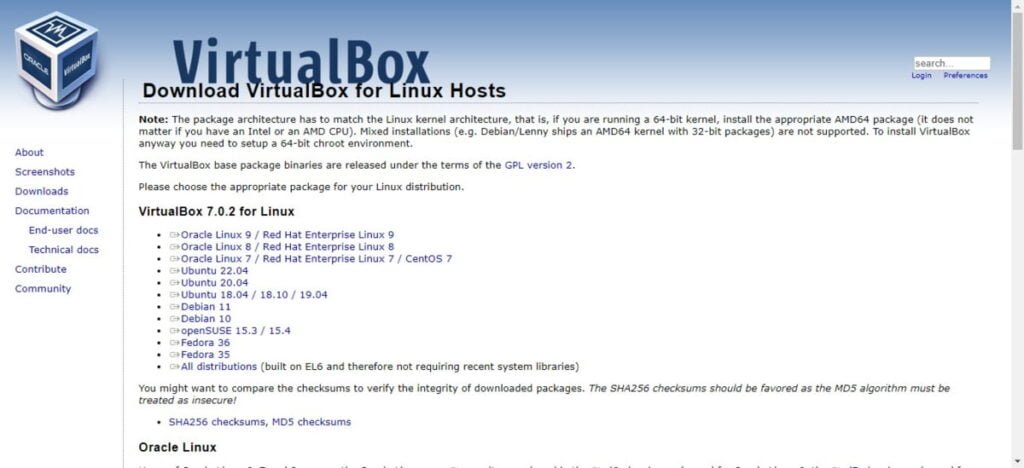
Besides that Vendor also provides an official yum repository for Red Hat based Linux distros.
You can download virtualbox.repo file and place it in /etc/yum.repos.d directory for immediate addition to dnf repolist.
wget https://download.virtualbox.org/virtualbox/rpm/el/virtualbox.repo -O /etc/yum.repos.d/virtualbox.repoYou have added new yum repositories, therefore, you should rebuild your yum cache now.
dnf makecacheInstall VirtualBox Prerequisites
You have successfully setup required yum repositories on your Rocky Linux server. Therefore, you can now easily install all VirtualBox prerequisites by executing a single dnf command.
dnf -y install kernel-devel kernel-headers glibc-headers glibc-devel binutils libgomp make patch gcc dkmsInstall VirtualBox on Rocky Linux 9
Search for the available versions of VirtualBox by using dnf command.
dnf search virtualboxOutput:
Last metadata expiration check: 0:07:29 ago on Fri 28 Oct 2022 09:49:34 PM CDT.
====================== Name & Summary Matched: virtualbox ======================
VirtualBox-6.1.x86_64 : Oracle VM VirtualBox
VirtualBox-7.0.x86_64 : Oracle VM VirtualBox
You can now install VirtualBox 7.0 on your Linux server by executing following command.
dnf install -y VirtualBox-7.0The VirtualBox installation process creates a systemd unit vboxdrv.service.
Check the status of vboxdrv.service.
systemctl status vboxdrv.serviceOutput:
● vboxdrv.service - VirtualBox Linux kernel module
     Loaded: loaded (/usr/lib/virtualbox/vboxdrv.sh; enabled; vendor preset: di>
     Active: active (exited) since Fri 2022-10-28 22:07:30 CDT; 2min 12s ago
    Process: 718 ExecStart=/usr/lib/virtualbox/vboxdrv.sh start (code=exited, s>
        CPU: 30.588s

Oct 28 22:06:35 virtualbox-01.centlinux.com systemd[1]: Starting VirtualBox Lin>
Oct 28 22:07:11 virtualbox-01.centlinux.com vboxdrv.sh[718]: vboxdrv.sh: Starti>
Oct 28 22:07:30 virtualbox-01.centlinux.com vboxdrv.sh[899]: VirtualBox service>
Oct 28 22:07:30 virtualbox-01.centlinux.com systemd[1]: Started VirtualBox Linu>
VirtualBox 7.0 has been successfully installed on your Rocky Linux 9 machine.
Installing VirtualBox Extension Pack
VirtualBox extension pack extends the VirtualBox support for VirtualBox RDP, disk encryption, NVMe and PXE boot for Intel cards.
You can download VirtualBox 7.0 Extension Pack for your preferred Linux distribution from VirtualBox website.
Alternatively, you can use wget command to download VirtualBox Extension Pack direct from Linux commandline.
cd /tmp
wget https://download.virtualbox.org/virtualbox/7.0.2/Oracle_VM_VirtualBox_Extension_Pack-7.0.2.vbox-extpack
Now, install VirtualBox extension pack by executing following Linux command.
VBoxManage extpack install Oracle_VM_VirtualBox_Extension_Pack-7.0.2.vbox-extpackOutput:
VirtualBox Extension Pack Personal Use and Evaluation License (PUEL)

<VirtualBox License Agreement>

Do you agree to these license terms and conditions (y/n)? y

License accepted. For batch installation add
--accept-license=33d7284dc4a0ece381196fda3cfe2ed0e1e8e7ed7f27b9a9ebc4ee22e24bd23c
to the VBoxManage command line.

0%...10%...20%...30%...40%...50%...60%...70%...80%...90%...100%
Successfully installed "Oracle VM VirtualBox Extension Pack".
VirtualBox 7.0 Extension Pack has been installed on your Rocky Linux server.
Although, it is quiet convenient to use VirtualBox in a Graphical User Interface (GUI). But you can also manage your VirtualBox environment on a headless server from Linux commandline (CLI). For this purpose, VirtualBox provides a set of commands prefixed with vbox*.
Video Tutorial

Final Thoughts
Congratulations on successfully learn how to install VirtualBox on Rocky Linux 9! With VirtualBox up and running, you can now create and manage virtual machines, allowing you to run multiple operating systems simultaneously on your Linux environment. This setup enhances your flexibility for testing, development, and running different applications.
Searching for a skilled Linux admin? From server management to security, I ensure seamless operations for your Linux systems. Find out more on my Freelancer profile!
FAQs
Q1: Can I install VirtualBox without internet access on Rocky Linux 9?
A1: Yes, by downloading the required RPM packages and dependencies on another computer and transferring them via USB, you can install VirtualBox offline.
Q2: How do I check if my CPU supports VirtualBox virtualization features on Rocky Linux 9?
A2: Run following command — a result greater than zero means your CPU supports hardware virtualization.
egrep -c '(vmx|svm)' /proc/cpuinfo
Q3: Is it necessary to disable SELinux or firewalld before installing VirtualBox?
A3: Typically no; VirtualBox works with SELinux and firewalld enabled, but some configurations may require adjustments or temporary disabling.
Q4: How can I update VirtualBox after installation on Rocky Linux 9?
A4: Use following command or re-install the latest VirtualBox RPM from the official repository to upgrade safely.
dnf update VirtualBox
Q5: Can I run VirtualBox GUI as a non-root user on Rocky Linux 9?
A5: Yes, after installation, add your user to the vboxusers group to allow non-root access to VirtualBox features.
What’s Next
If you’re serious about mastering virtualization and building a strong career in system administration, the Complete VMware vSphere ESXi and vCenter Administration by Imran Afzal is an excellent online course to consider. This step-by-step training covers everything from installation to advanced management, giving you practical skills that employers are actively looking for.
Whether you’re preparing for certification or aiming to boost your enterprise IT skills, this course offers real-world knowledge that you can immediately apply in your job or lab environment.
Disclaimer: Some of the links in this post are affiliate links, which means I may earn a commission—at no extra cost to you—if you make a purchase through them. This helps support my work in creating valuable tutorials and guides.

Leave a Reply
You must be logged in to post a comment.