
Learn how to install Google Chrome on Ubuntu with our step-by-step guide. Follow our instructions to download and set up Chrome quickly and easily on your Ubuntu system, enhancing your web browsing experience. #centlinux #ubuntu #chrome
Table of Contents
What is Google Chrome?
Google Chrome is a widely-used web browser developed by Google. It is known for its speed, simplicity, and security features, making it a popular choice among internet users worldwide.
Key Features
- Speed: Google Chrome is designed to be fast in every possible way, from loading web pages to running complex web applications. It uses the V8 JavaScript engine, which significantly enhances performance.
- Simplicity: Chrome has a clean and minimalistic user interface. It emphasizes simplicity and ease of use, with features like the omnibox, which allows users to search and navigate from the same box.
- Security: Chrome includes advanced security features to protect users from malware and phishing attacks. It regularly updates automatically to ensure users have the latest security patches. The browser also runs each tab in an isolated sandbox, reducing the risk of malicious code affecting the entire system.
- Extensions and Customization: The Chrome Web Store offers a vast array of extensions and themes, allowing users to customize their browsing experience and add additional functionality, such as ad blockers, productivity tools, and more.
- Sync Across Devices: By signing in with a Google account, users can sync bookmarks, history, passwords, and settings across multiple devices, providing a seamless browsing experience.
- Developer Tools: Chrome includes robust developer tools, making it a favorite among web developers for debugging, testing, and building web applications.

Advantages of Using Google Chrome
- Performance: Known for its fast performance, both in terms of page loading and running web applications.
- User Experience: Offers a streamlined and intuitive user interface that is easy to navigate.
- Cross-Platform Support: Available on various platforms, including Windows, macOS, Linux, Android, and iOS.
- Regular Updates: Frequently updated to improve performance, add new features, and enhance security.
- Extensive Ecosystem: A rich ecosystem of extensions and apps that can enhance productivity and functionality.
Google Chrome’s combination of speed, simplicity, and security makes it a leading choice for both casual users and professionals who require a reliable and efficient web browsing experience.
Google Chrome Alternatives
There are several alternatives to Google Chrome that cater to different preferences and needs. Here are some popular ones:
1. Mozilla Firefox
- Features: Known for its strong privacy and security features, customizable interface, and extensive library of add-ons.
- Pros: Open-source, highly customizable, robust privacy features.
- Cons: Can be slower than Chrome in certain scenarios, especially with many extensions.
2. Microsoft Edge
- Features: Built on the Chromium engine, Edge offers speed and compatibility similar to Chrome, with additional features like collections, vertical tabs, and enhanced security.
- Pros: Integrated with Windows 10/11, better battery optimization, built-in tracking prevention.
- Cons: Limited extension support compared to Chrome and Firefox.
3. Safari
- Features: Apple’s default browser for macOS and iOS, known for its energy efficiency and seamless integration with the Apple ecosystem.
- Pros: Optimized for macOS and iOS, excellent performance and battery life, strong privacy features.
- Cons: Limited to Apple devices, fewer extensions compared to Chrome and Firefox.
4. Opera
- Features: Offers a built-in VPN, ad blocker, and battery saver mode, with a unique sidebar for quick access to social media and messaging apps.
- Pros: Feature-rich, integrated VPN and ad blocker, customizable.
- Cons: Less popular, smaller extension library.
5. Brave
- Features: Focuses on privacy and security with built-in ad and tracker blocking, and rewards users with cryptocurrency for viewing privacy-respecting ads.
- Pros: Strong privacy features, fast performance, user rewards.
- Cons: Some sites may not work properly due to aggressive blocking.
6. Vivaldi
- Features: Highly customizable browser built on Chromium, offering features like tab stacking, split-screen view, and extensive theming options.
- Pros: Extremely customizable, rich feature set, privacy-focused.
- Cons: Can be overwhelming for users who prefer simplicity.
7. Tor Browser
- Features: Designed for anonymity and privacy, routing traffic through the Tor network to hide user identity and activity.
- Pros: Excellent for privacy and anonymity, bypasses censorship.
- Cons: Slower performance due to routing through multiple nodes, not suitable for everyday browsing for most users.
8. Chromium
- Features: The open-source version of Chrome, offering the same core functionality without Google’s proprietary features.
- Pros: Open-source, same performance as Chrome, highly customizable.
- Cons: Lacks some proprietary features like automatic updates and built-in Flash support.
Summary
Each of these browsers has its own strengths and is suitable for different types of users. Firefox and Brave are great for privacy-focused users, Edge and Safari are excellent for users in their respective ecosystems, and Opera and Vivaldi offer unique features that may appeal to power users. Choosing the right browser depends on your specific needs and preferences.
Read Also: Top 8 Google Drive Linux Clients
Problem Definition
In Ubuntu, Chrome is not installed by default. Instead, Ubuntu ships their Linux operating system with Mozilla Firefox as the default web browser.
Therefore, if you want to use it, then we have to explicitly install Google Chrome on Ubuntu.
This most popular web browser is available to download for all commonly used operating systems in 32-bit and 64-bit architectures including Linux distros, MS Windows, mobile and desktop platforms.
Linux Machine Specification
We are using a Ubuntu Desktop virtual machine with following specification.
- CPU – 3.4 Ghz (2 cores)
- Memory – 2 GB
- Storage – 20 GB
- Operating System – Ubuntu Desktop 18.04 LTS
- Hostname – ubuntu-desktop.centlinux.com
- IP Address – 192.168.116.222 /24
To install Google Chrome on Ubuntu, your system should have a modern 64-bit Ubuntu version (such as 20.04, 22.04, or later) with an active internet connection for downloading packages. A minimum of 2GB RAM and a few gigabytes of free disk space is recommended for smooth browser performance.
For those experimenting with Ubuntu or wanting a dedicated environment, using a mini PC or a VPS can be highly beneficial. A VPS like Bluehost VPS offers a robust platform to run Ubuntu remotely, which helps in testing installations and configurations without impacting your local machine.
[Start Your DevOps Lab with a Mini PC – Order Today!]
[Launch Your VPS Server with Bluehost – Reliable & Affordable!]
This approach is particularly useful for developers and Linux enthusiasts aiming to create isolated test environments.
Disclaimer: This post contains affiliate links; using these links supports the blog at no extra cost to you.
Download Google Chrome for Ubuntu
Connect to your Linux machine by using the graphical console.
You can download Google Chrome for various Linux distros from their official website.
Open URL https://www.google.com/chrome/ in your existing web browser i.e. Mozilla Firefox.
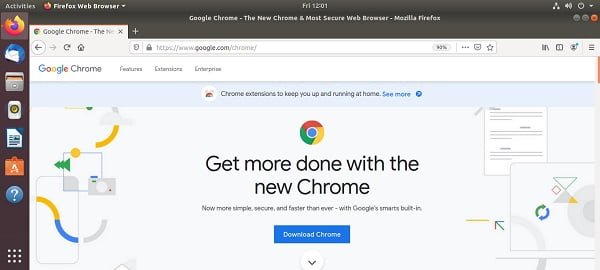
Click on “Download Chrome” button to select your preferred setup file.
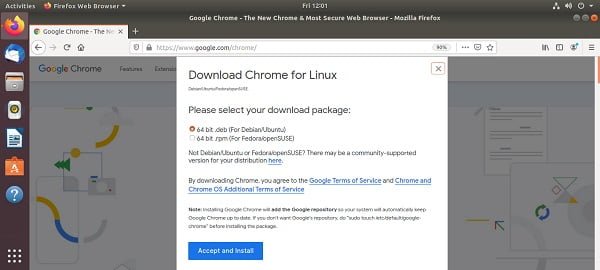
Since you are accessing this website from a Ubuntu machine, therefore, download page is providing us the Chrome downloads for Linux distros.
Select 64-bit .deb (For Debian/Ubuntu) package and click on “Accept and Install” button.
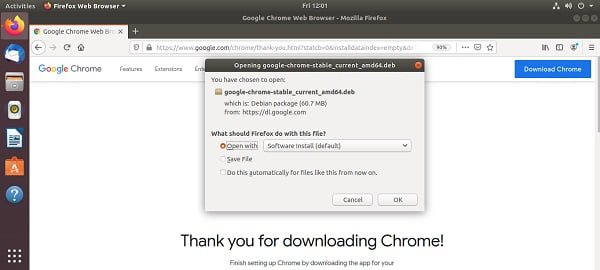
Your web browser is now asking for the action that can be performed on this DEB package.
You can either download and install Google Chrome package automatically on your Linux operating system or you can save it on the disk for a later installation.
You should select the “Open With” option. This way the Mozilla Firefox will automatically open the DEB file in the APT package manager.
After selecting the preferred option, click on “OK” button.
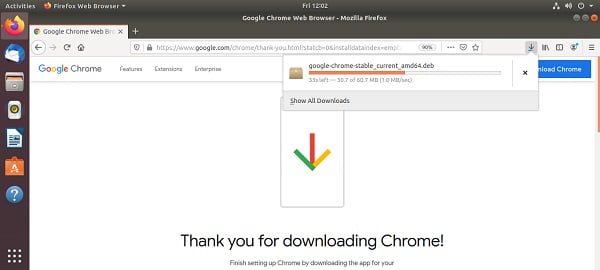
Web browser DEB package is being downloaded.
Install Google Chrome on Ubuntu
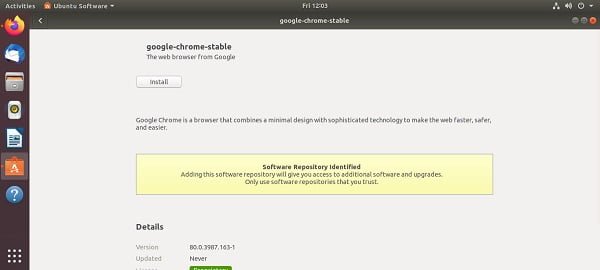
After successful downloading your DEB package will automatically opened by the APT package manager.
Click on the “Install” button to start Installation of DEB file.
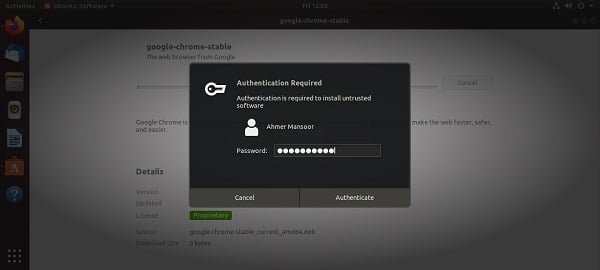
Since, you are not installing this software from an APT repository, therefore, installer requires authentication.
Enter your password and click on “Authenticate”.
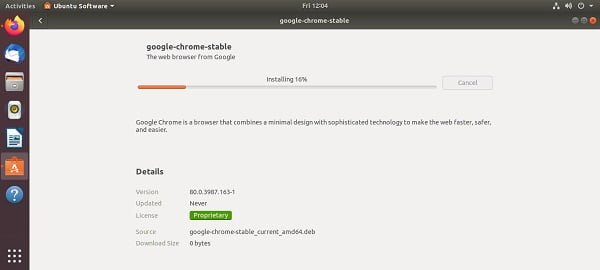
Installation of the most popular web browser is in progress now.
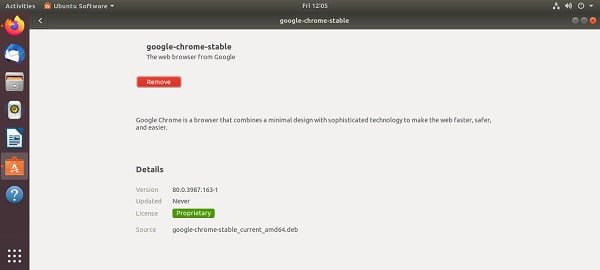
Your required software has been installed successfully on your Linux operating system.
Run Chrome Web Browser for the First Time
Click on the “Application” button at the bottom of the left toolbar.
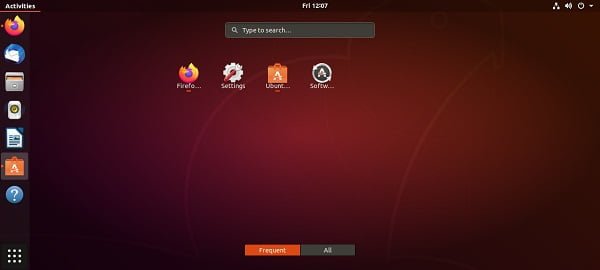
You have recently installed web browser on your Linux operating system, therefore it is not available in frequently used applications. Click on “All” to see all the installed applications.
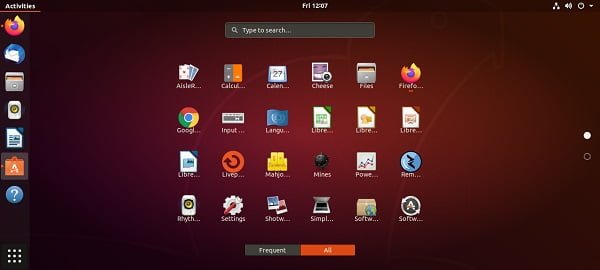
You will find the Chrome icon there. Click on it to open the web browser.
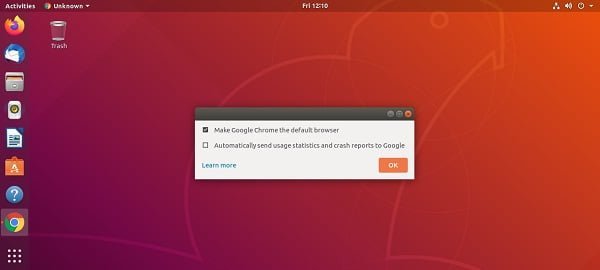
Your web browser is starting for the first time, therefore, you need to configure some settings.
Select “Make Google Chrome the default browser” and click on “OK”.
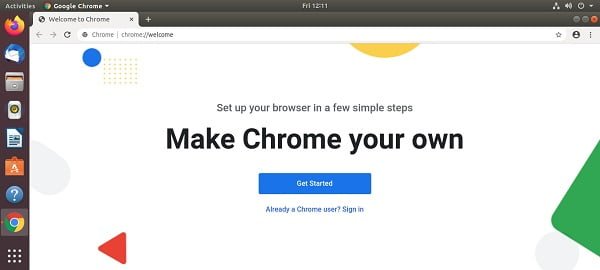
You have successfully started the Chrome application.
Open URL https://centlinux.com in your new web browser.
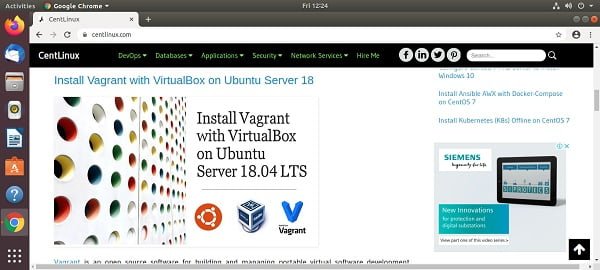
Your Chrome web browser is installed and working fine.
Update Google Chrome on Ubuntu
Update process is fully automated on Ubuntu, as well as other operating systems. Chrome browser will update itself as soon as an update is published by Google.
Final Thoughts
Installing Google Chrome on Ubuntu is a straightforward process that can greatly enhance your web browsing experience with its speed, security, and extensive feature set. By following the steps outlined in our guide, you’ll have Chrome up and running in no time, providing you with a powerful tool for your everyday internet needs.
Searching for a skilled Linux admin? From server management to security, I ensure seamless operations for your Linux systems. Find out more on my Freelancer profile!
FAQs
1. What is the easiest way to install Google Chrome on Ubuntu?
The easiest way is to download the official .deb package from Google’s website and install it using terminal commands like
sudo dpkg -i google-chrome-stable_current_amd64.deb
followed by
sudo apt --fix-broken install
to resolve dependencies.
2. Can I install Google Chrome on Ubuntu using the command line only?
Yes, you can. Use wget to download the Chrome .deb package, then install it with dpkg. This method is efficient for automated setups or remote servers.
3. How do I fix errors related to missing dependencies when installing Google Chrome on Ubuntu?
After installing with dpkg, run
sudo apt --fix-broken install
to automatically fix and install any missing dependencies required by Chrome.
4. How do I update Google Chrome on Ubuntu after installation?
Adding Google’s official repository to your system allows you to update Chrome with system updates via sudo apt update and sudo apt upgrade, ensuring you get the latest version automatically.
5. Is it safe to install Chrome on Ubuntu from the official Google repository?
Yes, adding Google’s official signing key and repository is safe and preferred for security and timely updates compared to manual installs from standalone .deb files.
Recommended Courses
Boost your Linux skills with the “Linux Command Line Basics” by Ahmed Alkabary—a perfect course for beginners who want to master the command line efficiently. Whether you’re aiming for a career in system administration, DevOps, or just want to manage your Linux systems like a pro, this course covers everything from essential commands to practical exercises.
Start learning at your own pace and transform the way you interact with Linux today. [Enroll here] to get started instantly!
Disclaimer: This post contains affiliate links. If you purchase through these links, I may earn a small commission at no extra cost to you. Your support helps me continue sharing helpful tech content.
If you’re serious about leveling up your Linux skills, I highly recommend the Linux Mastery: Master the Linux Command Line in 11.5 Hours by Ziyad Yehia course. It’s a practical, beginner-friendly program that takes you from the basics to advanced command line usage with clear explanations and hands-on exercises. Whether you’re a student, sysadmin, or developer, this course will help you build the confidence to navigate Linux like a pro.
👉 Enroll now through my affiliate link and start mastering the Linux command line today!
Disclaimer: This post contains affiliate links. If you purchase through these links, I may earn a small commission at no extra cost to you, which helps support this blog.








Leave a Reply
You must be logged in to post a comment.