
Unlock blazing-fast performance and rock-solid security with this step-by-step guide on How to Set Up Nginx Reverse Proxy on Debian. Discover exactly how to configure, optimize, and secure your server like a pro—even if you’re a beginner. Boost site speed, protect backend apps, and host multiple services effortlessly. Don’t miss out on the setup every smart developer is using today—read now before you fall behind! #CentLinux #Linux #Nginx
Table of Contents
How to Set Up Nginx Reverse Proxy on Debian
A reverse proxy might sound like something complicated or reserved only for advanced sysadmins, but truthfully, it’s one of the most powerful and practical tools you can add to your server setup. Whether you’re hosting a single web app or managing multiple services on one machine, setting up an Nginx reverse proxy can completely transform the way your applications operate behind the scenes. On Debian, the process becomes even smoother because of its stable architecture and predictable system structure. In this guide, we’re diving deep—really deep—into not just how to set up an Nginx reverse proxy, but how to understand it, optimize it, troubleshoot it, and secure it like a professional.
Think of a reverse proxy like a friendly receptionist at the entrance of your building. Instead of clients wandering through hallways trying to find the right office (your internal apps), the receptionist (Nginx) greets them, checks where they want to go, and sends them directly to the proper room (backend services). This not only creates order but also keeps your internal structure hidden, secure, and well-organized. Throughout this article, I’ll walk you step-by-step through the setup process on Debian, explaining every concept in a conversational, human-friendly way. If you’re ready to make your server sleeker, safer, and far more manageable, let’s dive in.

Understanding Reverse Proxies
A reverse proxy sits between clients (like web browsers) and backend servers (your apps). Instead of clients connecting directly to services—say an app running on port 3000—the reverse proxy receives the request first and then forwards it to the appropriate backend. The client never sees what happens behind the curtain. This simple concept opens up a world of possibilities in server management.
Reverse proxies are used for many reasons. First, they improve security. Exposing internal services directly to the internet is risky because ports like 3000, 8080, or 5000 could become attack targets. With a reverse proxy, only port 80/443 is exposed, while everything else remains internal. Next, reverse proxies help with performance. They can cache content, compress data, and serve static files blazing fast. They also enable you to host multiple apps behind one public IP using domain-based routing. And if you’re venturing into load balancing later, a reverse proxy becomes the perfect stepping stone.
People often confuse reverse proxies with load balancers, and to be fair, they can sometimes overlap. The key difference is that a reverse proxy sits in front of your app, handling routes and requests, while a load balancer distributes traffic across multiple servers. However, Nginx can do both, which makes it incredibly powerful. Understanding this foundational concept sets the stage for everything else you’ll build in this guide.
Why Choose Nginx for Reverse Proxying
Nginx is the king of reverse proxies—and for good reason. It’s lightweight, insanely fast, and capable of handling thousands of concurrent connections with minimal resource usage. Many major companies (Netflix, GitHub, Dropbox, and more) rely on Nginx for serving high-performance web content.
One of the reasons Nginx is ideal as a reverse proxy is its event-driven architecture. Instead of creating a new process for each connection (like older web servers), Nginx handles requests asynchronously. That’s why even small VPS servers can run Nginx smoothly under heavy load. Another benefit is its flexibility.
- Need to proxy a Node.js app? No problem.
- A Python Flask API? Easy.
- Multiple applications on one server? Child’s play.
Add SSL, compression, caching, or WebSocket support—and Nginx handles them effortlessly.
The configuration syntax is also clean and readable. Even beginners can get comfortable with it in an hour or two. Unlike some other reverse proxy tools, Nginx gives you fine-grained control over headers, routing, buffers, and error handling. From simple setups to advanced enterprise-level routing, Nginx grows with your needs. It’s the perfect tool for Debian users who want reliability, speed, and long-term stability.
Prerequisites Before Installation
Before jumping straight into commands, it’s important to make sure your Debian environment is properly prepared. A reverse proxy setup is simple only when the foundation is solid. You don’t need to be a Linux wizard to follow this guide, but having the essentials in place will save you from frustrating errors later. First, ensure that you’re running a supported Debian version—Debian 10, 11, or 12 works perfectly. Older versions may still support Nginx, but repositories or system dependencies might differ, leading to compatibility issues. The goal here is to make your setup smooth, predictable, and future-proof.
You’ll also need access to a user account with sudo privileges. Without sudo, you won’t be able to install packages or modify system-level configurations. If you’re working with a fresh server from a provider like Hostinger, Bluehost, or Rose Hosting, chances are your default user already has sudo access. But if you’re working on your own hardware or a custom setup, double-check this before moving on. It’s also important to ensure that port 80 (HTTP) and port 443 (HTTPS) are open in your firewall. These are the ports Nginx will listen on, and if they’re blocked, nothing else in this tutorial will work.
Another important prerequisite is having at least one application running in the background that you want to proxy. It could be a Node.js app on port 3000, a Python FastAPI server on 8000, a Docker container, or anything else. The reverse proxy needs something to forward traffic to. Even if it’s a simple “Hello World” app, set it up and confirm it runs correctly on localhost. A reverse proxy cannot fix issues with the backend—it simply routes traffic.
Lastly, you should know how to use a terminal. The commands in this guide are like a recipe: follow them line-by-line, and everything works. But knowing how to navigate using cd, ls, nano, cat, and less will make the process feel natural. Once these prerequisites are checked off, you’re ready to update your Debian system and begin the real setup.
To set up Nginx as a reverse proxy on Debian, ensure you have a reliable VPS server or dedicated mini PC that supports Debian Linux for smooth and consistent performance. The popular and well-reviewed Raspberry Pi 4 Model B is a top choice for affordable home lab projects, while the Dell OptiPlex Micro offers robust power for heavier workloads and production environments. Both devices provide excellent value and community support for Linux runs.
Disclaimer: Please note this post contains affiliate links to Amazon, and purchases made through these links may earn a small commission at no extra cost to you.
Installing Debian 13

Updating and Preparing Your Debian Server
Before you install Nginx, it’s essential to update your Debian system. Think of it like preparing your kitchen before cooking — you don’t want outdated ingredients or missing tools. Updating ensures your repository list is fresh and that you’re installing the latest secure version of every package. Start with the following commands:
sudo apt update
sudo apt upgrade -y
The first command refreshes the package list, while the second installs the newest versions available. Sometimes, you may also be prompted to restart services or even reboot the server. Don’t ignore these prompts; old services can clash with new dependencies. After this, it’s wise to install a few essential packages that make server administration easier, such as curl, ufw, git, and unzip. These aren’t strictly required for Nginx, but you’ll likely use them sooner or later.
Next, check your system’s hostname and domain setup. If you plan to serve applications using domain names, ensure that your DNS records are already pointing to your server’s public IP address. Use online DNS checker tools if needed. Nginx can still run without DNS, but SSL certificates won’t work unless your domain is correctly configured. This step is often overlooked, but it’s critical if you’re planning to secure your reverse proxy with HTTPS later.
Another helpful step is verifying that no other service is already using ports 80 or 443. For example, Apache is installed by default on some Debian images, and it will conflict with Nginx. Run this command:
sudo lsof -i -P -n | grep LISTENIf you see Apache or another service on port 80/443, stop and disable it before moving on:
sudo systemctl stop apache2
sudo systemctl disable apache2
With your system updated, cleaned, checked, and prepped, you’re now ready to install Nginx. This preparation sets you up for a painless, error-free installation process.
Installing Nginx on Debian
Installing Nginx on Debian is one of the most straightforward steps in this entire process, but it’s also one of the most important. Once installed, Nginx becomes the “traffic controller” of your system — the component that intercepts and redirects every incoming request. Debian makes the installation experience smooth because Nginx is included in the official repositories, meaning you can install it without adding any external sources or custom packages. Begin with the following command:
sudo apt install nginx -yOnce this command completes, Nginx is installed, but that doesn’t automatically mean it’s running. You must verify its status:
sudo systemctl status nginxIf the service is active and running, you’re good to proceed. If it’s not, you can start it manually:
sudo systemctl start nginxAnd then make sure it always launches on boot:
sudo systemctl enable nginxNow comes a simple but important test: open your browser and navigate to your server’s IP address. If everything is set up correctly, you should see the default Nginx welcome page — a clean, white screen with a green message saying “Welcome to Nginx!”. This might seem trivial, but it confirms that Nginx is installed, running, and properly serving requests. If you don’t see the page, double-check your firewall settings or review whether another service is conflicting with port 80.
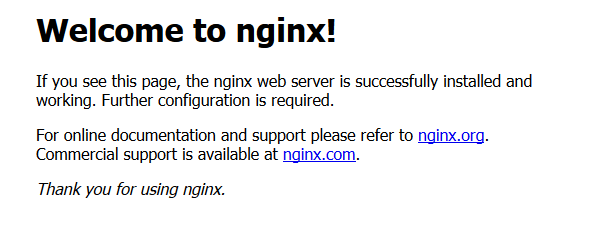
Behind the scenes, Nginx’s installation also creates several directories that you will soon interact with. For example, /etc/nginx contains all configuration files, and /var/www/html holds the default web root. At this stage, don’t change anything yet — simply confirm that Nginx works as expected. Now you’re ready to dive deeper and configure Nginx as a reverse proxy.
Read Also: Top 12 Popular Load Balancers & ADC
Understanding Nginx Configuration Structure
If Nginx is the engine behind your reverse proxy, then its configuration system is the control panel. To work effectively with Nginx, you need to understand its configuration structure — not because it’s complicated, but because it’s logically organized in a very specific way. Once you understand how everything fits together, editing configurations becomes second nature.
The main configuration file is located at:
/etc/nginx/nginx.confThis file is the “root” of the entire system and includes other configuration files through include directives. You typically won’t modify nginx.conf unless you’re handling advanced optimization. Instead, the real action happens in two directories:
/etc/nginx/sites-available//etc/nginx/sites-enabled/
Think of sites-available as a storage folder for all your possible Nginx configurations. You can have multiple files in there — even ones you’re not actively using. Meanwhile, sites-enabled contains symbolic links to configuration files that Nginx should actually load when it runs. This system allows you to enable or disable configurations without deleting anything.
To enable a site, you use:
sudo ln -s /etc/nginx/sites-available/example.conf /etc/nginx/sites-enabled/To disable a site:
sudo rm /etc/nginx/sites-enabled/example.confAnother important folder is:
/etc/nginx/snippets/This is where you store reusable config fragments — for example, SSL configurations for Certbot. Understanding these directories makes it easier to manage multiple apps, domains, or proxy routes. As your server grows, the organization of your Nginx setup becomes even more important.
Lastly, anytime you change a configuration, always test it with:
sudo nginx -tIf the test passes, reload Nginx:
sudo systemctl reload nginxThis simple workflow prevents errors that could bring your sites offline. With your configuration knowledge now solid, it’s time to create your first reverse proxy file.
Creating Your Reverse Proxy Configuration File
Now that you understand how Nginx’s configuration system works, it’s time to build your first reverse proxy configuration file. This is where everything begins to come together. Creating a reverse proxy config is essentially like teaching Nginx how to route specific incoming requests to the backend application running behind the scenes. The idea is simple: users send traffic to your domain (or server IP), and Nginx forwards that traffic to another application listening on a different port.
Start by creating a new file inside /etc/nginx/sites-available/. Let’s call it myapp.conf, but you can name it anything you want:
sudo nano /etc/nginx/sites-available/myapp.confInside this file, you’ll create a server block. Think of a server block as an instruction sheet that tells Nginx what to do when someone visits your domain. A very basic reverse proxy server block looks like this:
server {
    listen 80;
    server_name example.com;

    location / {
        proxy_pass http://127.0.0.1:3000;
        proxy_set_header Host $host;
        proxy_set_header X-Real-IP $remote_addr;
        proxy_set_header X-Forwarded-For $proxy_add_x_forwarded_for;
        proxy_set_header X-Forwarded-Proto $scheme;
    }
}
The listen 80; directive tells Nginx to listen for HTTP traffic. server_name needs to match your domain name — if you haven’t set up a domain yet, you can temporarily use your server’s IP address. The location / block defines where Nginx should forward all incoming traffic. The star of the show, proxy_pass, forwards the request to your backend app — in this example, one running locally on port 3000.
The proxy_set_header directives are essential. They preserve important information like the user’s IP address and original protocol (HTTP or HTTPS). Without these headers, some apps may behave incorrectly, especially frameworks that depend on accurate request data.
Once your file is ready, save it and exit. Next, you must enable the configuration:
sudo ln -s /etc/nginx/sites-available/myapp.conf /etc/nginx/sites-enabled/Then test it:
sudo nginx -tIf everything looks good, reload Nginx:
sudo systemctl reload nginxAt this point, your reverse proxy configuration exists — but we still need to discuss how to set it up properly for a single and multiple backend applications. That’s what we’ll tackle next.
Setting Up a Reverse Proxy for a Single Backend Application
Setting up a reverse proxy for one application is the perfect starting point. It’s straightforward, easy to test, and gives you a solid understanding of how the proxying process works before multiplying the setup. Let’s imagine you have a Node.js, Python, PHP, or Go backend running on port 3000. The goal is to make it accessible on your domain using standard web ports (80 or 443).
First, confirm that your backend service is running correctly:
curl http://127.0.0.1:3000If the backend outputs a response, you’re good. If it fails, fix your backend first — a reverse proxy cannot forward requests to an app that isn’t working.
Now revisit the configuration we created earlier. In many cases, a single app requires additional tuning. For example, if your backend supports WebSockets, you’ll need to include:
proxy_set_header Upgrade $http_upgrade;
proxy_set_header Connection "upgrade";
If you want to handle large uploads, adjust:
client_max_body_size 50M;Another important detail is timeouts. Some backend apps take longer to respond, so increasing timeouts can prevent 504 Gateway Timeout errors:
proxy_read_timeout 300;
proxy_connect_timeout 300;
proxy_send_timeout 300;
Once the config is finalized, reload Nginx again:
sudo systemctl reload nginxNow open your browser and visit:
http://your-domain.comIf everything is configured correctly, your backend app should load instantly — but now it’s accessible through a clean domain, protected behind Nginx, and ready for SSL encryption.
This simple configuration is the foundation of more advanced routing setups. Next, we’ll explore how to proxy multiple apps behind one server — which is where the true power of Nginx shines.
Configuring Reverse Proxy for Multiple Applications (Domain-Based Routing)
Once you’ve mastered reverse proxying for a single backend application, the natural next step is hosting multiple applications on the same Debian server. This is one of the biggest advantages of using Nginx as a reverse proxy—it allows you to run several apps simultaneously, each with its own domain or subdomain, all routed cleanly through the same machine. This setup is common for developers who host dashboards, APIs, admin panels, and client sites all on one VPS.
The principle is simple: each application gets its own server block. Think of server blocks like separate instructions for Nginx—each block listens to specific domain names and forwards traffic to different backend ports. For example, imagine you have:
- A Node.js app running on port 3000 (
myapp.com) - A Python FastAPI service on port 8000 (
api.myapp.com) - An admin panel on port 5000 (
admin.myapp.com)
To configure this, create separate files for each app in /etc/nginx/sites-available/.
Example: myapp.com
server {
    listen 80;
    server_name myapp.com;

    location / {
        proxy_pass http://127.0.0.1:3000;
        proxy_set_header Host $host;
        proxy_set_header X-Real-IP $remote_addr;
        proxy_set_header X-Forwarded-For $proxy_add_x_forwarded_for;
        proxy_set_header X-Forwarded-Proto $scheme;
    }
}
Example: api.myapp.com
server {
    listen 80;
    server_name api.myapp.com;

    location / {
        proxy_pass http://127.0.0.1:8000;
        proxy_set_header Host $host;
        proxy_set_header X-Real-IP $remote_addr;
        proxy_set_header X-Forwarded-For $proxy_add_x_forwarded_for;
        proxy_set_header X-Forwarded-Proto $scheme;
    }
}
Example: admin.myapp.com
server {
    listen 80;
    server_name admin.myapp.com;

    location / {
        proxy_pass http://127.0.0.1:5000;
        proxy_set_header Host $host;
        proxy_set_header X-Real-IP $remote_addr;
        proxy_set_header X-Forwarded-For $proxy_add_x_forwarded_for;
        proxy_set_header X-Forwarded-Proto $scheme;
    }
}
Once the three files are created, enable each configuration:
sudo ln -s /etc/nginx/sites-available/myapp.com /etc/nginx/sites-enabled/
sudo ln -s /etc/nginx/sites-available/api.myapp.com /etc/nginx/sites-enabled/
sudo ln -s /etc/nginx/sites-available/admin.myapp.com /etc/nginx/sites-enabled/
Then test your configuration:
sudo nginx -tAnd reload Nginx:
sudo systemctl reload nginxIf your DNS records are pointed correctly (A records for each domain/subdomain to your server IP), you can now access each app with its own clean domain.
This kind of routing gives you tremendous flexibility—you can host a full microservice stack on a $5 VPS and scale over time without changing your architecture. Next, we move into enabling and testing your reverse proxy setup to ensure everything works smoothly.
Enabling and Testing the Nginx Reverse Proxy
With your reverse proxy configuration in place, the next step is to enable and thoroughly test everything. This part of the process ensures your apps are reachable, stable, and properly routed. Even a small typo can break Nginx, so learning how to test configurations effectively is extremely important.
First, always test Nginx syntax:
sudo nginx -tIf there’s an error, Nginx will tell you exactly where it is—usually giving the line number and the type of issue. Common errors include missing semicolons, unclosed brackets, or incorrect paths. If the test says “syntax is ok” and “test is successful,” you can safely reload:
sudo systemctl reload nginxNow begin testing the actual functionality using your browser or tools like curl:
curl -I http://myapp.com
curl -I http://api.myapp.com
curl -I http://admin.myapp.com
If you receive valid HTTP responses (200, 301, 302, etc.), the routing is correct. But testing shouldn’t stop there. You should also confirm that the backend apps correctly receive forwarded headers, especially if your app depends on client IP detection. To test this in Node.js or Python, log req.headers or the equivalent.
Another important practice is checking logs. Nginx logs every request and error, which helps you identify issues quickly:
sudo tail -f /var/log/nginx/access.log
sudo tail -f /var/log/nginx/error.log
Watching these logs while refreshing your browser can reveal problems like timeouts, permission errors, or misrouted traffic.
Once everything is confirmed working, the next major step is securing your reverse proxy with SSL. This is essential—not optional—because modern browsers, API clients, and even search engines penalize unsecured HTTP traffic.
And now, we move to the SSL portion.
Securing Your Reverse Proxy with SSL (Certbot + Let’s Encrypt)
A reverse proxy without SSL is like a house with no lock—sure, it works, but would you really feel comfortable living in it? Today, HTTPS is not only expected but required for security, SEO ranking, browser compatibility, and protecting user data. Fortunately, Let’s Encrypt and Certbot make SSL installation incredibly easy on Debian. By the end of this section, your entire reverse proxy setup will be encrypted, secure, and fully trusted by browsers.
Start by installing Certbot and the Nginx plugin:
sudo apt install certbot python3-certbot-nginx -yOnce installed, you can generate an SSL certificate for any domain configured in your Nginx server blocks. Let’s say you want to secure myapp.com:
sudo certbot --nginx -d myapp.comCertbot will ask a few questions, including whether you want to redirect HTTP traffic to HTTPS. Always choose the option that forces HTTPS—it improves security and makes your configuration cleaner. Certbot will automatically edit your Nginx configuration, adding SSL directives such as:
listen 443 ssl;
ssl_certificate /etc/letsencrypt/live/myapp.com/fullchain.pem;
ssl_certificate_key /etc/letsencrypt/live/myapp.com/privkey.pem;
include /etc/letsencrypt/options-ssl-nginx.conf;
It also adds a separate block for port 80 that redirects all traffic to HTTPS:
return 301 https://$host$request_uri;Repeat this process for each domain/subdomain:
sudo certbot --nginx -d api.myapp.com
sudo certbot --nginx -d admin.myapp.com
With HTTPS enabled, your reverse proxy now protects user data with encryption, prevents browser warnings, and ensures compatibility with modern standards.
One of the best features of Certbot is automated renewal. Certificates renew every 90 days, but Certbot handles this for you. Test the renewal process with:
sudo certbot renew --dry-runIf the test succeeds, you’re fully protected. With SSL in place, it’s time to enhance performance.
Performance Optimization Tips for Nginx Reverse Proxy
Your reverse proxy is now functional and secure, but we’re not stopping there. Nginx is powerful because it’s more than a simple traffic router—it can optimize, compress, and accelerate your applications. Even a small amount of tuning can significantly reduce load times, improve responsiveness, and lower server resource usage.
Start with gzip compression, which reduces file sizes sent to the client:
gzip on;
gzip_types text/plain text/css application/json application/javascript application/xml;
gzip_min_length 1000;
You can put these inside /etc/nginx/nginx.conf under the http block.
Next, consider caching. Nginx can cache upstream responses, reducing the number of calls to your backend. This is extremely effective if your backend generates repeat content:
proxy_cache_path /var/cache/nginx levels=1:2 keys_zone=mycache:10m inactive=60m;Then add caching to a location block:
proxy_cache mycache;
proxy_cache_valid 200 1m;
proxy_cache_use_stale error timeout updating;
Another performance tweak is tuning worker processes. By default, Nginx tries to auto-detect the number of available CPU cores, but it’s good practice to verify the setting:
worker_processes auto;
worker_connections 1024;
This tells Nginx to handle more concurrent users efficiently.
You should also reduce proxy buffer issues, which can cause timeouts:
proxy_buffering on;
proxy_buffers 16 16k;
proxy_buffer_size 16k;
Finally, optimizing SSL can significantly speed up HTTPS:
ssl_session_timeout 1d;
ssl_session_cache shared:SSL:10m;
ssl_session_tickets off;
Once all optimizations are applied, reload Nginx:
sudo systemctl reload nginxNow your reverse proxy isn’t just functional—it’s fast, stable, and ready for production.
Logging and Monitoring Nginx Reverse Proxy
Monitoring your reverse proxy is critical for maintaining reliability. Nginx produces two important logs: access logs and error logs.
Access logs show who visited your server:
/var/log/nginx/access.logError logs show issues with upstream servers, misconfigurations, or failed requests:
/var/log/nginx/error.logYou can monitor logs in real-time:
sudo tail -f /var/log/nginx/error.logFor deeper monitoring, use:
sudo journalctl -u nginx -fThis allows you to troubleshoot system-level issues.
For large production environments, tools like Grafana, Prometheus, and GoAccess can visualize traffic and detect anomalies.
Monitoring is your best defense against downtime—review your logs regularly.
Troubleshooting Common Reverse Proxy Issues
Even the best setups run into issues. Here are the most common:
502 Bad Gateway
Usually caused by a backend app being down or wrong proxy_pass URL.
504 Gateway Timeout
Your backend took too long to respond. Increase timeouts.
Connection Refused
Backend app isn’t running or listening on the correct port.
SSL Errors
Caused by misconfigured domain names or expired certificates.
Diagnose every issue with:
sudo nginx -t
sudo tail -f /var/log/nginx/error.log
Nginx always tells you what’s wrong—you just need to read the logs carefully.
Best Practices for Long-Term Reverse Proxy Management
To maintain a reliable system:
- Update your Debian server regularly.
- Keep SSL certificates renewed.
- Rotate logs to prevent disk overuse.
- Restart backend apps gracefully.
- Monitor traffic spikes.
- Backup your Nginx configuration files.
Following these practices ensures your reverse proxy stays stable, secure, and consistent over time.
Conclusion
Setting up an Nginx reverse proxy on Debian might seem technical at first, but once you break down the concepts and take each step methodically, it becomes incredibly easy and extremely powerful. From improving security through hiding backend services, to boosting performance through caching, compression, and routing, Nginx brings enterprise-level capabilities to any small VPS. By following this guide, you’ve not only learned how to set up a reverse proxy, but also how to optimize it, secure it, and manage it like a seasoned professional.
Struggling with Linux server management? I offer professional support to ensure your servers are secure, optimized, and always available. Visit my Freelancer profile to learn more!
FAQs
1. Do I need a domain to set up a reverse proxy?
No, but you need one to enable HTTPS.
2. Can I reverse proxy Docker containers?
Yes—just proxy to the container’s internal port.
3. How do I add multiple apps behind the same domain?
Use location blocks instead of separate server blocks.
4. Does Nginx support WebSockets?
Absolutely—you just need the correct headers.
5. How do I remove a reverse proxy configuration?
Delete the symlink from sites-enabled and reload Nginx.
Recommended Courses
If you’re serious about mastering web server technology, I highly recommend “NGINX Fundamentals: High Performance Servers from Scratch” by Ray Viljoen. This course is perfect for beginners and intermediate users who want to build lightning-fast, secure, and scalable servers from the ground up. With step-by-step guidance, you’ll quickly learn how to configure, optimize, and manage NGINX for real-world use cases. It’s a smart investment for system administrators, developers, or anyone looking to level up their skills with one of the most powerful web servers in the industry.
Disclaimer: This post contains affiliate links. If you purchase through these links, I may earn a small commission at no extra cost to you, which helps support this blog.
Leave a Reply
You must be logged in to post a comment.